Backorder transactions within AGCO API can be initiated via a web service on behalf of AGCO dealerships that require those parts. To manage backorder transactions:
To respond to a backorder transaction that has been submitted to your dealership:
-
Access the AGCO API web application.
-
Click the link at the top of the screen and then choose the Transactions option.
-
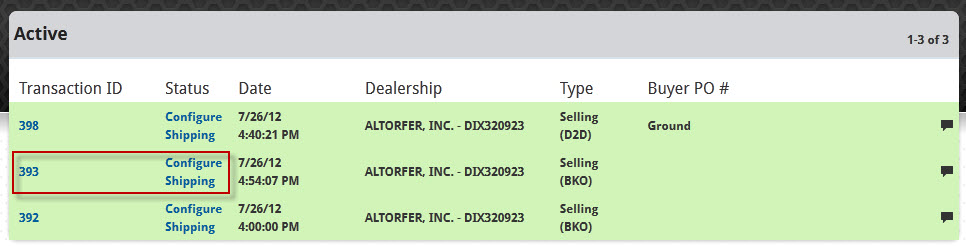
In your list of active transactions, backorder transactions, if they exist, will be listed with a Type value of Selling (BKO), instead of the standard Buying (D2D) or Selling (D2D), where D2D indicates dealer-to-dealer transactions.
-
To respond to a backorder transaction request with a status of Selling (BKO), click its hyperlink in the Transaction ID column or the Status column.
-
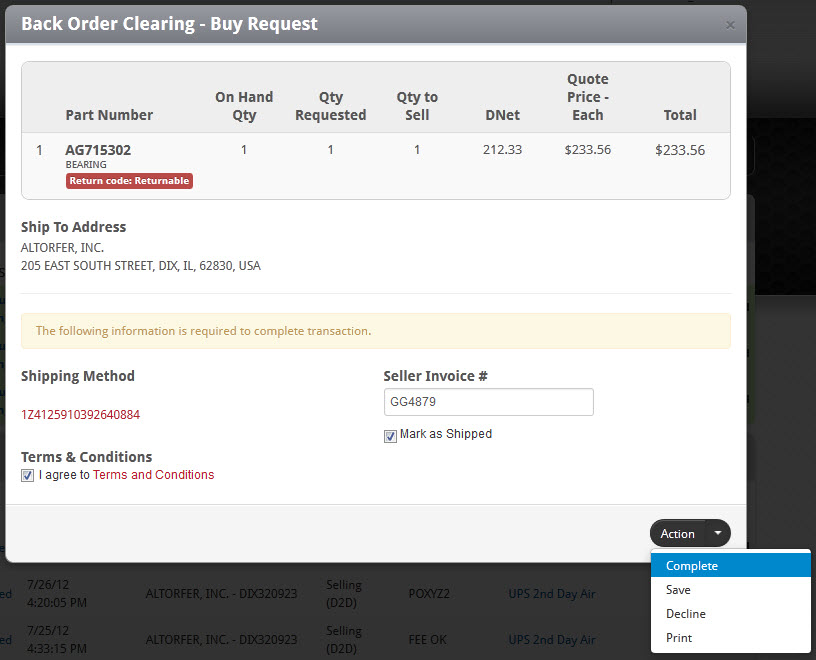
For backorder transactions, AGCO has predetermined the shipping method, part quantities, and pricing terms.
-
Configure the shipping method, add your seller invoice number, mark the order as shipped, and agree to the terms and conditions as usual, in the Back Order Clearing - Buy Request dialog.
-
When you are ready to finalize the order, select the Complete option from the Action dropdown menu.
-
If you want to decline the order, select the Decline option from the Action dropdown menu.
-
For additional details, refer to the "Completing a Transaction" section.

 ) button on the right side of the corresponding row. You will be asked to confirm the withdrawal of the selection transaction.